
- Applications
- Education
Leitner Box
| Install | <10 |
| From 0 Rates | 0 |
| Category | Education |
| Size | 14 MB |
| Last Update | 2026 August 18 |
| Install | <10 |
| From 0 Rates | 0 |
| Category | Education |
| Size | 14 MB |
| Last Update | 2026 August 18 |
Images
Introduction
Bring your own dictionary into the app.
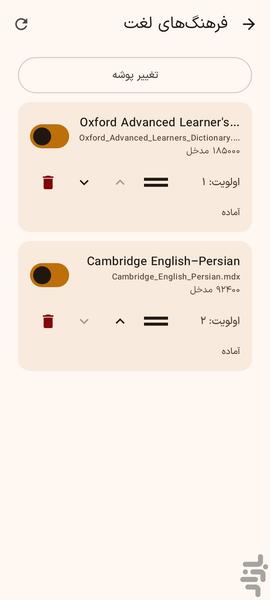
Place your MDX files and their optional MDD resource files in a folder, then select that folder in Leitner Box. The app imports and indexes your dictionaries so you can search words, read definitions, and turn useful entries directly into learning cards—without creating an account.
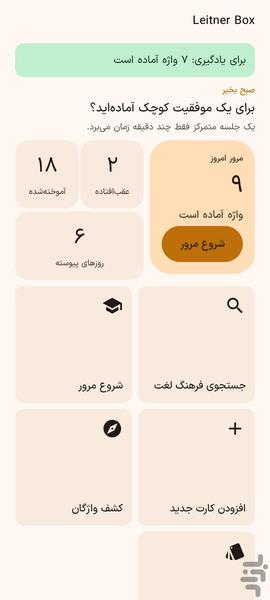
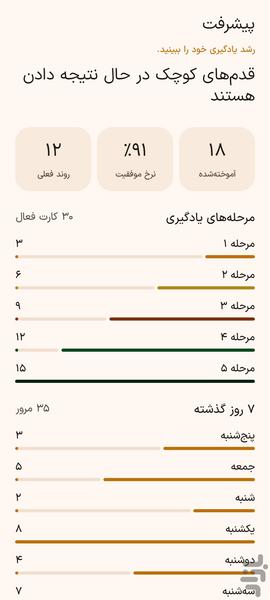
Leitner Box turns vocabulary learning into a few focused minutes each day. Every card moves through five learning stages. Remembered cards advance and receive a longer review interval; forgotten cards return to stage one for a fresh start.
Key features:
- Import your own MDX dictionaries and companion MDD resources
- Search a word across all enabled dictionaries
- View dictionary definitions while reviewing cards
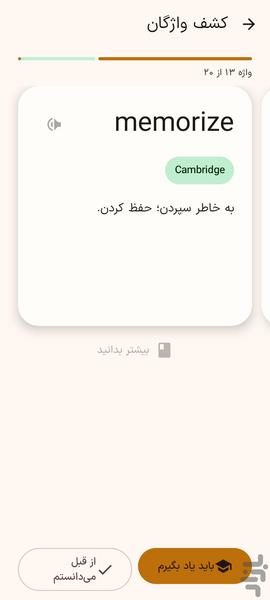
- Discover new words from dictionary headwords and save them to a “To Learn” inbox
- Create flashcards with a front, back, example, and personal note
- Use a five-stage Leitner spaced-review workflow
- Create multiple learning boxes for different languages or subjects
- Choose source and target languages and prioritize dictionaries
- Search and filter cards by stage, due status, and favorites
- Track mastered cards, success rate, review activity, and streaks
- Customize daily new-card limits and stage intervals
- Receive daily reminders when cards are due
- Use the app in Persian or English, with light and dark themes
- No account required; cards and progress remain on your device
Note: The app does not include or distribute dictionary files. You need to provide your own MDX files and any related MDD files.
### How to use
1. Open the app and choose the interface language.
2. Go to Settings → Dictionaries.
3. Tap Select folder and choose a folder containing your `.mdx` and `.mdd` files. Keep companion MDD files beside their related MDX file.
4. Wait for copying, verification, and indexing to finish. The dictionary should show the “Ready” status.
5. Enable the dictionaries you want, arrange their priority, and correct their languages if needed.
6. Create a learning box and choose its name, source language, target language, and dictionaries.
7. From Home, search for a word or open Discover Words.
8. Mark useful words as I should learn this, then create their cards from the “To Learn” list. You can also create cards manually.
9. Open Today’s Review each day. Recall the answer first, reveal it, then choose I knew it or I forgot.
10. Check Progress for your results and customize reminders or review intervals in Settings.
If Android blocks selection of the storage root or Downloads root, create a regular folder such as `Documents/Dictionaries`, move the files there, and select that folder instead.