- Applications
- Tools
Text To Speech: Text Reader
| Install | 470 |
| From 0 Rates | 0 |
| Category | Tools |
| Size | 14 MB |
| Last Update | 2026 September 3 |

| Install | 470 |
| From 0 Rates | 0 |
| Category | Tools |
| Size | 14 MB |
| Last Update | 2026 September 3 |
Images



Introduction
Text to Speech reads text, PDF, webpages, and ebooks, and using to generate an audio file or to play the spoken words directly through the device's speaker. If you have a reading problem then you use this app to learn any language and lesson. This is an essential tool who cannot speak English and you have reading difficulties.
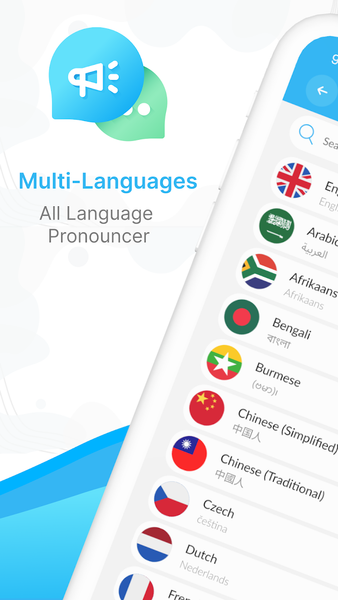
You learn and listen to the voice reader speech central in 60+ languages. Control the audio(speed, pitch, and volume) and save the Playback audio, and listen at any time. Copy the text and paste the required data press the voice button now you listen on the required data. The text pronouncer is used to make content more accessible to people who are visually impaired or for language learning purposes.
Features of Text to Speech
Accessibility:
Text To Speech: Text Reader makes written text more accessible to visually impaired individuals, as they can have the text read aloud to them.
Language Learning:
Text To Speech can help language learners to improve their pronunciation and comprehension by hearing the text spoken in a native-like voice.
Ease of use text reader:
Text reader app are user-friendly and do not require any special skills to use, making them accessible to a wider range of individuals.
Time-saving:
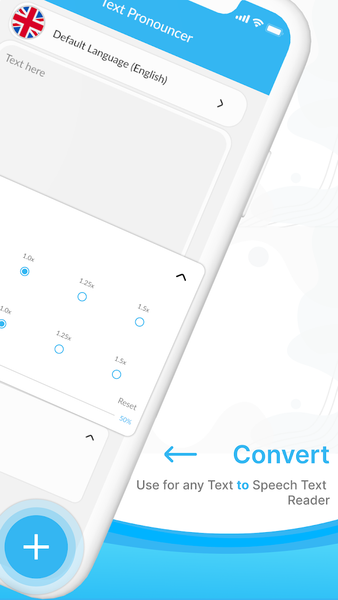
Text To Speech: Text Reader can save time by allowing users to have large amounts of text read to them quickly, without having to read it themselves.
Improved Engagement:
By adding an auditory element to written text, text reader help keep users engaged and focused, especially for people who struggle to focus when reading.
Multitasking:
Text pronouncers allow users to listen to the text while doing other tasks, such as driving or exercising.
Control the Audio Speech Assistant:
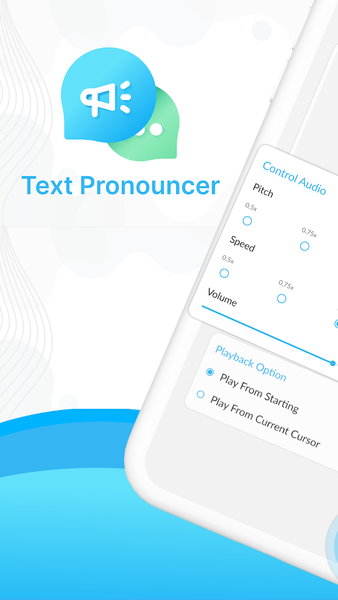
Set the pitch, speed, and Volume of sound.
Playback settings:
Play from starting or Play from the current cursor, its settings depend on you,
Overall, text pronouncers provide a convenient and efficient way to access written information and can improve the reading experience for a variety of users.
How to Use Text to speech :
•Tap the icon of the Text-to-Speech application.
•Copy and paste or type the text that you want to have pronounced into the text field provided by the text pronouncer.
•Choose the language and voice in which you want the text to be pronounced. Some text pronouncers offer a variety of voices and languages to choose from.
•Press the "Play" or "Speak" button so that the text is pronounced.
•Text reader supports saving audio files, you can also save the pronounced text as an audio file for future use.
Related Applications







Users Also Installed








Similar Applications